Chrome enhances autofill features for mobile with Google Wallet integration

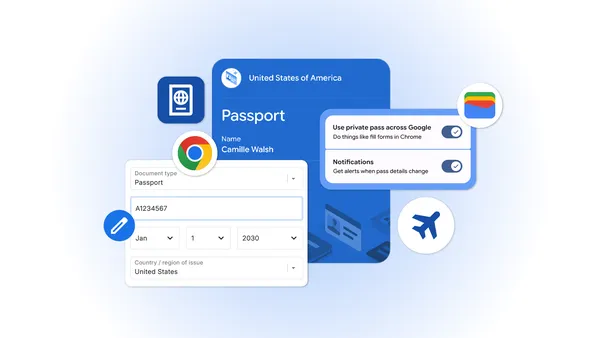
Chrome is expanding its autofill features for both iOS and Android users, enhancing its integration with Google Wallet to make accessing information like passport and payment details easier.
The latest update to Chrome allows users to autofill detailed information such as flight details and vehicle registration numbers on both iOS and Android devices. This includes the ability to retrieve sensitive information, like passport numbers and driver’s license details, directly from Google Wallet, which helps to expedite the form-filling process. Importantly, all data is encrypted and will only be used with the user’s explicit consent.
By drawing data directly from Google Wallet, Chrome makes the process of completing online forms significantly quicker. Whether it’s entering passport and driver’s license information or inputting flight details, the autofill feature simplifies these tasks. Users retain control over their data, as Chrome will only utilize it with permission, ensuring both security and convenience.
The autofill feature continues to enhance efficiency for tasks like checking in for flights or making parking payments. Recently enhanced to manage more complex data types, Chrome can now automatically fill in details such as flight information and vehicle details, including license plates and VINs. These improvements are now available to iOS and Android users.
Alongside these enhancements, there is a deeper integration with Google Wallet for both mobile and desktop users. Chrome can now autofill forms using data stored in Google Wallet, which includes driver’s license details, passport information, and Known Traveler Numbers. If this information isn’t already saved in the Wallet, it can be stored there when first entered in Chrome.
Chrome ensures that your information is only saved or used with your permission, and sensitive data remains encrypted. You can manage or update your data through Google Wallet settings or the “Autofill and passwords” section in Chrome settings. Private passes, such as IDs, can be controlled through their own specific settings.